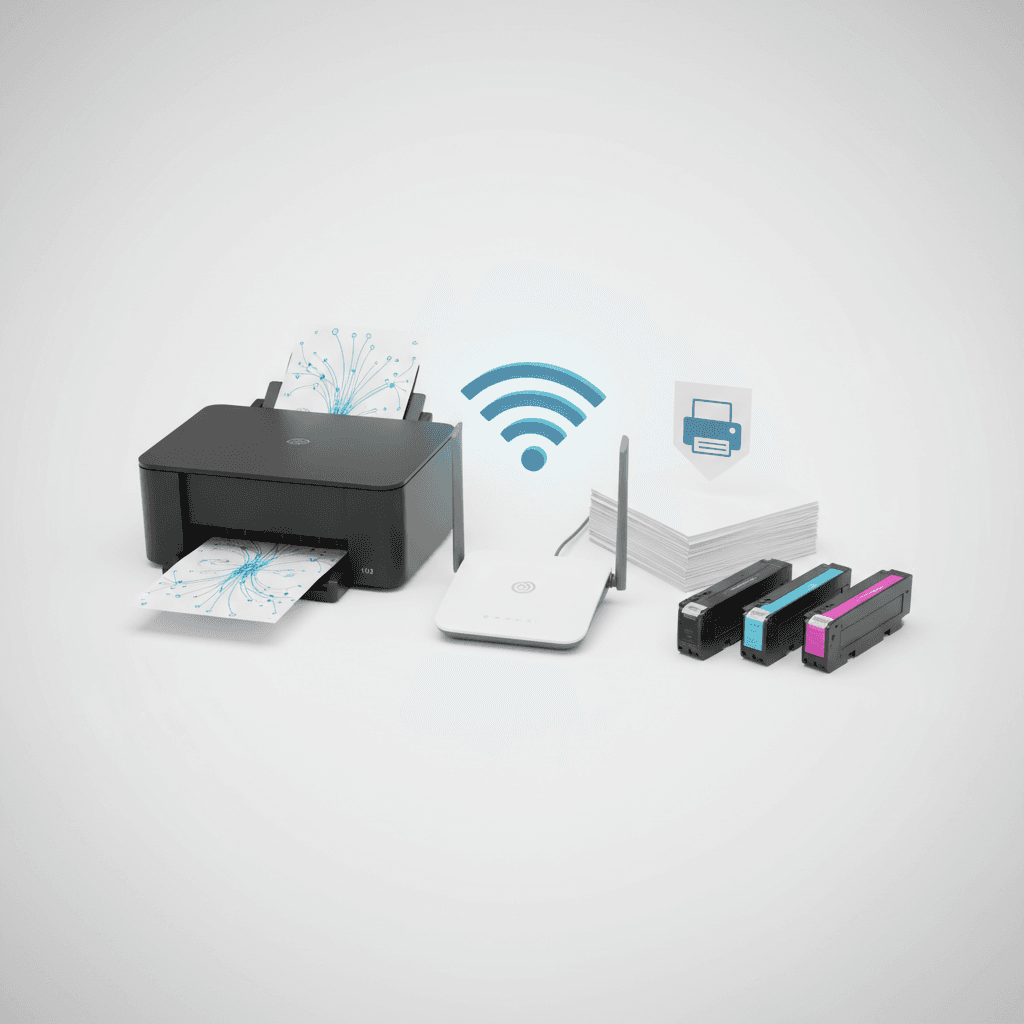
How to Set Up Wireless Printing on Your Wi-Fi Router in 2026
Introduction
Setting up wireless printing on your Wi-Fi router streamlines document management and eliminates cable clutter in the modern workspace. As we navigate 2026, having a centralized network printer ensures that multiple users can seamlessly print from various devices. This guide provides a straightforward approach to connecting your printer to your wireless network for optimal efficiency.
Main Discussion
- Check Printer and Router Compatibility: Ensure your laser printer supports Wi-Fi or Ethernet connectivity. Most modern printers in 2026 have built-in wireless capabilities, but older models might require a direct Ethernet connection to the router to function wirelessly across the network.
- Connect via WPS (Wi-Fi Protected Setup): If both your router and printer feature a WPS button, this is the fastest method. Simply press the WPS button on your router, followed by the WPS button on your printer, to establish a secure connection without entering passwords.
- Manual Network Configuration: For printers without WPS, use the printer's control panel to navigate to the network settings. Select your Wi-Fi network (SSID) and enter the password. Once connected, print a network configuration page to verify the IP address and ensure your toner levels are accurately reporting to the network.
- Install Printer Drivers on Devices: After the printer is on the network, install the necessary drivers on your computers and mobile devices. Modern operating systems often detect network printers automatically, allowing you to monitor toner cartridges and print queues directly from your workstation.
Why It Matters
In the fast-paced business environment of Pakistan, efficient resource management is critical. Wireless printing allows entire departments to share a single, high-capacity laser printer, reducing hardware costs and centralizing toner replacement schedules. Whether operating a corporate office in Karachi or a startup in Lahore, a reliable Wi-Fi printing setup minimizes downtime, prevents cable-related hazards, and ensures that essential documents are printed without delay.
Contact
Contact us: +92 332 2805280