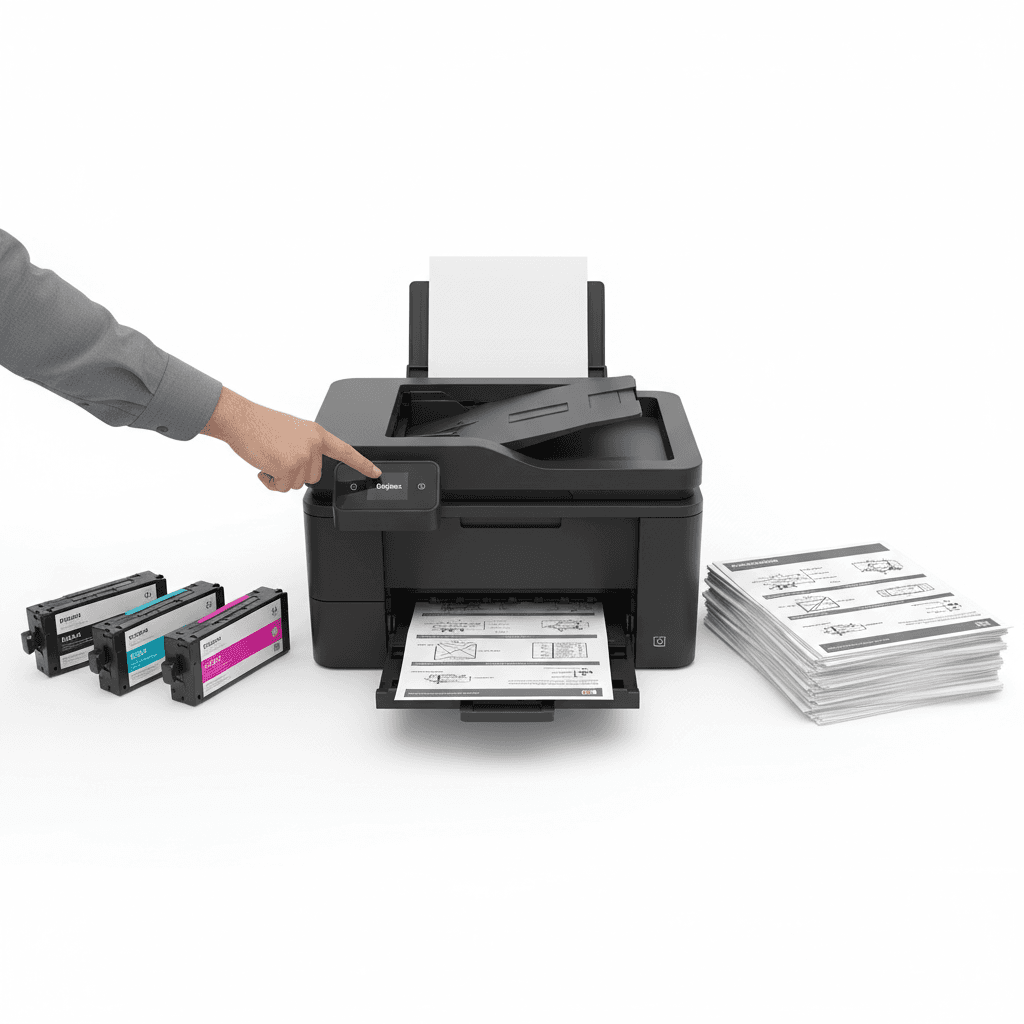
How to Enable Duplex Printing on Popular Printer Models in 2026
Introduction
Duplex printing, or two-sided printing, is an essential feature for modern offices looking to reduce paper waste and cut operational costs. As we navigate 2026, enabling this feature on your office printer is easier than ever. This guide walks you through the steps to activate duplex printing on the most popular printer brands used across Pakistan.
Main Discussion
- HP LaserJet Pro Series (e.g., M404dn): To enable duplex printing on Windows, navigate to 'Printers & Scanners', select your HP printer, and click 'Manage'. Under 'Printer Properties', go to the 'Device Settings' tab and ensure the 'Duplex Unit' is set to 'Installed'. When paired with a high-yield HP 59X toner, this setup is perfect for high-volume corporate reports.
- Canon imageCLASS Series (e.g., LBP6230dn): Open your document and press Ctrl+P. Click on 'Printer Properties' and navigate to the 'Finishing' tab. Select '2-sided Printing' from the Print Style drop-down menu. Using premium Canon 326 compatible toners ensures that double-sided prints remain crisp without toner bleed-through.
- Brother MFC Series (e.g., MFC-L2710DW): For Mac users, select 'Print' from the file menu, choose 'Layout' from the print options pop-up menu, and select 'Long-Edge binding' under the Two-Sided option. Brother printers work exceptionally well with TN-2420 toners, providing sharp text for legal and academic documents.
Why It Matters
With the rising costs of office supplies in Pakistan in 2026, duplex printing is a straightforward way to cut paper consumption by up to 50%. This directly impacts the bottom line for businesses operating in major hubs like Karachi, Lahore, and Islamabad. Furthermore, combining two-sided printing with high-quality, reliable toner cartridges ensures professional document presentation while supporting sustainable, eco-friendly corporate practices.
Contact
Contact us: +92 332 2805280