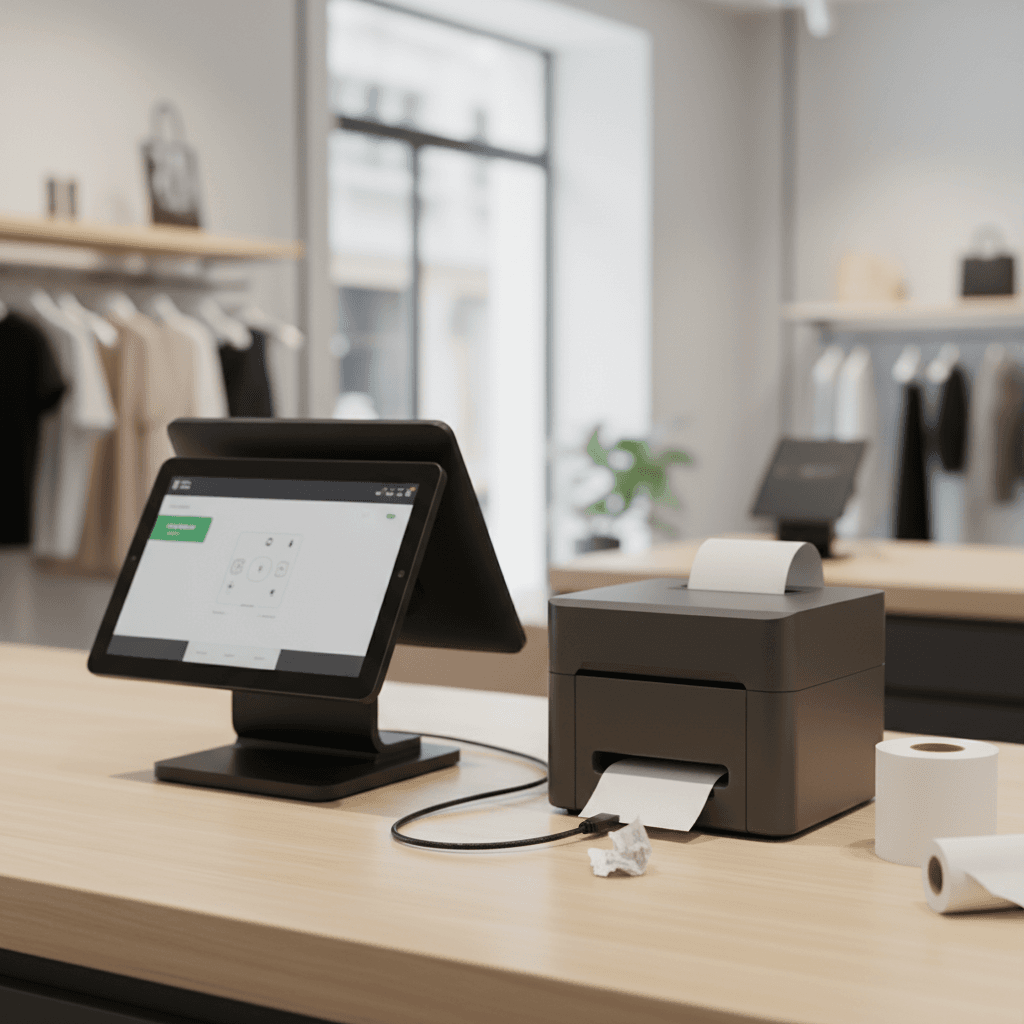
Connect Printers to POS Systems: A Seamless Guide
Introduction
In today's fast-paced business environment, integrating your Point of Sale (POS) system with your printers is crucial for streamlined operations. This guide will walk you through the essential steps and considerations for a smooth connection, ensuring your business runs efficiently.
Main Discussion
Connecting your printers to your POS system can significantly enhance workflow efficiency. Here are key aspects to consider:
- Understanding Connection Types: Most POS systems connect to printers via USB, Ethernet (network), or Bluetooth. USB offers a direct, simple connection for single-station setups. Ethernet is ideal for multi-station environments, allowing shared access to a network printer. Bluetooth provides wireless convenience but is generally suited for mobile POS devices.
- Driver Installation and Configuration: After physically connecting the printer, you'll need to install the correct drivers on the device running your POS software. Your POS system will then need to be configured to recognize and select the newly installed printer for specific tasks like receipt printing or order tickets.
- Printer Compatibility with POS Software: Not all printers are universally compatible with all POS software. It's vital to check the compatibility list provided by your POS system provider. For example, many thermal receipt printers are designed specifically for POS use, offering fast, quiet printing of receipts and order slips. Ensure your chosen printer supports the necessary command languages (like ESC/POS) if required by your software.
- Network Setup for Shared Printers: If you're using a network printer for multiple POS terminals, ensure it's correctly configured on your local network. This involves assigning an IP address to the printer and making it accessible to all devices running the POS software. This setup is common in busy retail environments where multiple cashiers need to print receipts simultaneously.
- Troubleshooting Common Issues: Common problems include incorrect driver installation, network connectivity issues, or the POS software not recognizing the printer. Regularly updating drivers and checking network cables or Wi-Fi connections can resolve many issues. Ensure the printer is set as the default for receipt printing within the POS settings.
Why It Matters
For businesses in Pakistan, from bustling Karachi markets to Lahore's retail outlets and Islamabad's offices, efficient POS and printer integration is non-negotiable. It reduces manual errors, speeds up customer transactions, improves inventory management through accurate order printing, and enhances the overall customer experience. Reliable printing solutions, often powered by high-quality toner or thermal paper, are the backbone of these seamless operations, ensuring every sale is accurately recorded and every customer receives their receipt promptly. Investing in the right setup minimizes downtime and maximizes productivity, crucial for staying competitive.
Contact
Contact us: +92 332 2805280